Know which menu controls each element so you can build your scene step by step.
What SEKAI Stories is for
Before you start editing, identify which menus manage background, models, and text. This helps avoid confusion and ensures you do not try to do everything from the same panel.

The SEKAI Stories editor shows an anime character preview with background and editing controls, along with a welcome message about creating stories. — Smilie Pop
Background menu
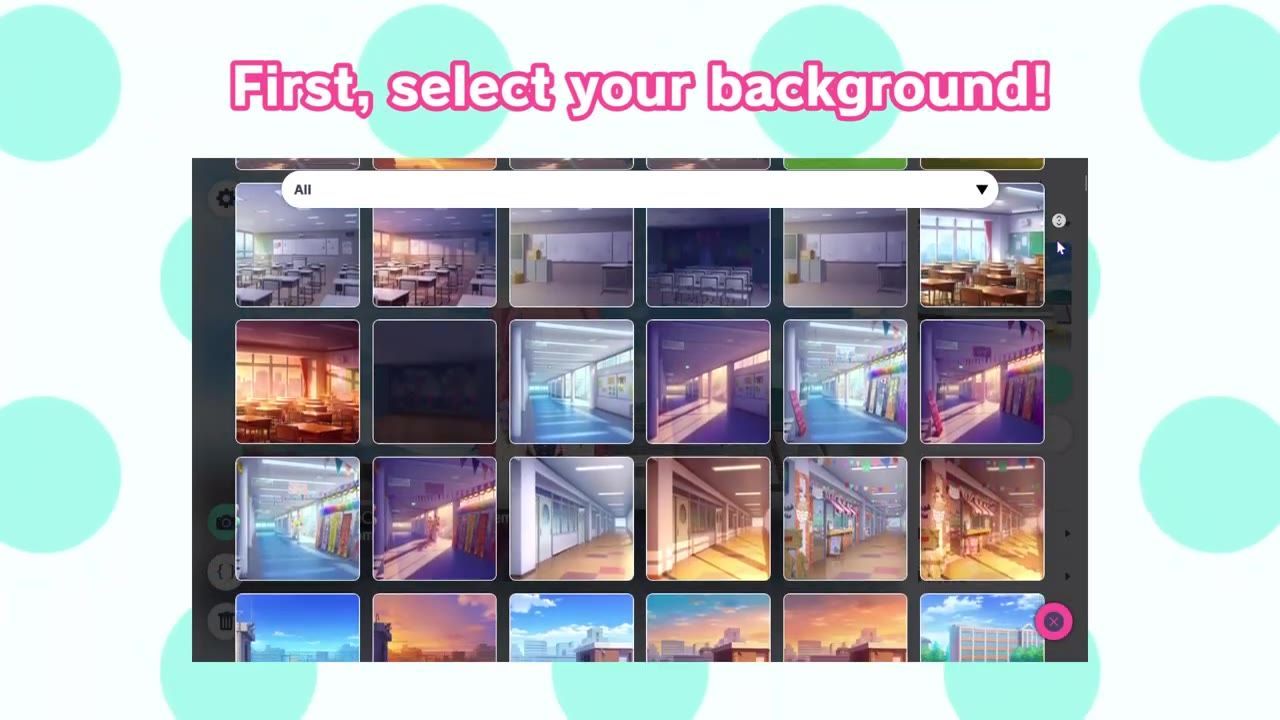
Select a backdrop that fits the tone or environment for your story. If the scene feels off later, return to this menu and switch backgrounds before making other edits.

The background selection menu is open with a scene backdrop preview visible. — Smilie Pop
steps
- Choose a background that matches your intended story.
- Revisit this menu if you want to change the setting later.
Models menu
Proper positioning helps your scene look coherent and matches the flow of your story.

A character is placed in a rooftop scene inside the models menu, with background options open on the right. — Smilie Pop
steps
- Load the character models and move them as needed for scene composition.
- If a model does not appear as expected, adjust in this menu until fixed.
Text menu
Organize text carefully so your scene reads smoothly.

A character preview appears in a dialogue editor with text on the canvas and menu controls around it. — Smilie Pop
steps
- Enter and review text line by line, moving through pages as needed.
- Use the page controls to add or edit subsequent lines in the story.
Saving stories
steps
Also worth knowing
- Multi-page editing:
- Model loading issues:
- Text box limits: The editor may not allow you to turn off text boxes, meaning some layout elements are fixed.
FAQ
How do I change the background in SEKAI Stories?
Use the background menu and select another scene backdrop to update your story’s setting.
What can I do in the text menu?
The text menu lets you write and organize the scene’s dialogue, progressing line by line or page by page.
How do I add or position characters in the models menu?
Open the models menu, place character models in your scene, and adjust their positions as needed.
How do I save a custom story in SEKAI Stories?
Save your story once the background, models, and text are in place by using the tool’s save option.
Sources
Screenshots on this page are frames from the videos below, used to illustrate the steps they describe. All rights remain with their creators.
- A Quick Tutorial to SEKAI Stories! — Smilie Pop, April 12, 2026